
How do you annotate sheet music on an iPad?
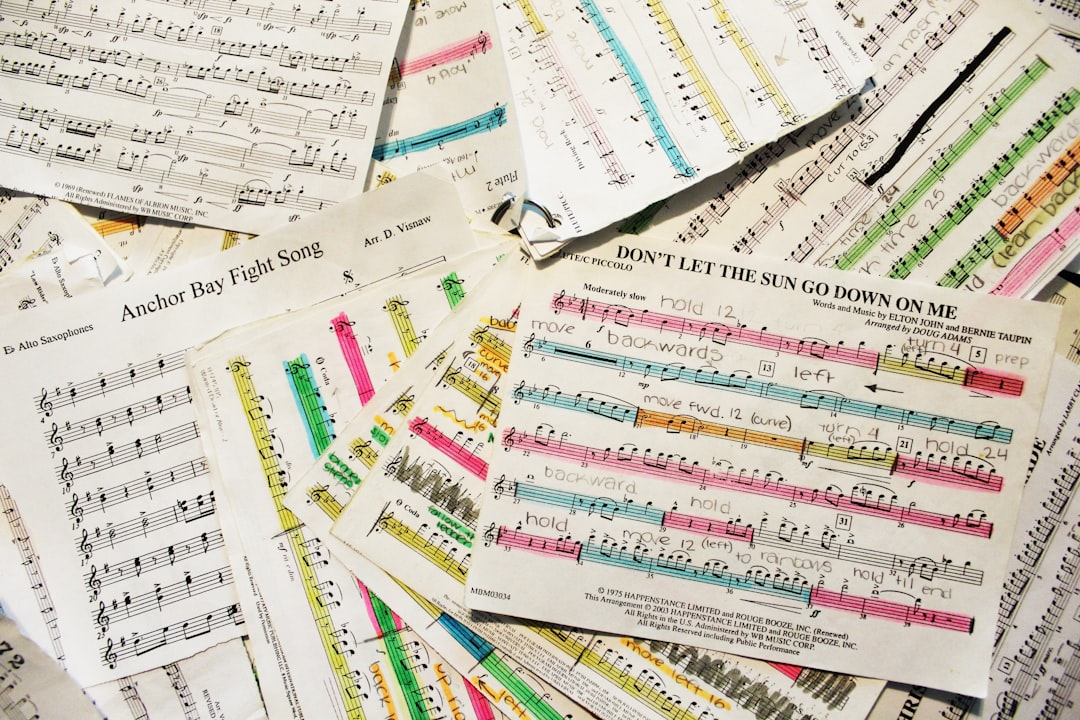
Table of Contents
Why annotate sheet music on an iPad instead of on paper?
Musicians have been annotating their scores for centuries. Fingering notations in pencil, bowings hastily sketched between rehearsals, the conductor’s instructions jotted in the margins: all of this is part of the daily musical routine. But paper has its practical limitations. It’s hard to erase, pages get lost, copies are made by hand, and two musicians working on the same piece don’t automatically share their annotations.
The iPad changes the way we interact with sheet music. A 12.9-inch iPad Pro displays an A4 page at actual size. When used with an Apple Pencil, it replicates the feel of writing on paper with a latency of less than 9 milliseconds, according to Apple. Annotations can be edited, erased, and moved. They do not mar the original sheet music.
For orchestras, chamber ensembles, and music schools, the benefits are even more evident. Newzik’s solution for ensembles allows each musician to receive their annotated score in just a few seconds, without the need for printing or physical distribution. On tour, replacing a case full of paper scores with an iPad greatly simplifies logistics.
73%
of professional musicians surveyed in a 2024 industry study reported that they annotate their sheet music digitally at least once a week, compared with 31% in 2019.
Digital annotation doesn't replace old habits; it extends them. A musician accustomed to using a pencil finds the same gestures on an iPad, along with additional features: undoing a mistake with a single tap, choosing the color of an underline, or zooming in on a difficult measure without losing sight of the page as a whole.
The annotation tools available in Newzik
The Newzik app offers a range of annotation tools designed for musicians. Unlike a general-purpose PDF editor, each tool is tailored to a specific musical need. Here’s what’s included in the main toolbar.
Newzik also includes a musical notation recognition feature. If you draw a common symbol (slur, crescendo, accent), the app will generate a clean vector version of it. This feature speeds up work within the narrow margins of orchestral scores.
Annotations are automatically saved to the cloud. Whether you're using the Newzik app on your iPhone or the web version, your notes will appear on all your devices without any extra steps.
Step-by-step guide: Annotating a sheet music score on an iPad
Here is the complete procedure for annotating a score in Newzik, from opening the file to the final save.
Step 1: Import or open your sheet music
Newzik supports PDF, MusicXML, and sheet music files shared by an ensemble or teacher. To import a file from your iPad, tap the "+" button in the library, then select "From Files." You can also open files directly from an email or via AirDrop: iOS suggests Newzik as the default app for music PDFs.
If your school or orchestra uses Newzik, the sheet music will appear in your library as soon as an administrator has distributed it. The Newzik solution for music education manages this distribution centrally.
Step 2: Turn on annotation mode
Once the score is open, tap the pencil icon in the top bar. The annotation toolbar appears at the bottom of the screen. If you're using an Apple Pencil, Newzik automatically detects the stylus and switches to drawing mode. Your finger is reserved for scrolling and zooming, which prevents accidental annotations.
Step 3: Choose the tool and color
Select the desired tool from the bottom toolbar. A long press on the pencil or highlighter opens the customization options: line thickness (0.5 to 8 points), opacity (10% to 100%), and color (choose from twelve options). Musicians often adopt a personal color code: red for fingerings, blue for bowings, green for breaths or changes in playing style.
Step 4: Annotate and refine
Draw your annotations directly on the sheet music. Double-tap with two fingers to undo the last action. To move an existing annotation, switch to selection mode (arrow icon), tap the item, and then drag it. This flexibility makes up for one of the limitations of paper: nothing is permanent.
Step 5: Save and export
Saving is automatic and continuous in Newzik. To export an annotated version to a colleague who doesn't use the app, tap the share menu, then select "Export to PDF with annotations." The generated file includes all your annotations in the final PDF, which can be viewed on any device.
Collaborative annotation: Share your annotations with the group
Individual annotation is just one of the many features Newzik offers. In an orchestra or chamber ensemble, musicians often need to incorporate the conductor’s or rehearsal coach’s instructions directly into their parts. With Newzik’s collaborative mode, an annotation added by the conductor to a master score can be pushed simultaneously to the parts for each section.
In practice: the conductor draws a phrase arc or a tempo indication on their iPad. Within seconds, all connected musicians see this annotation appear on their own screens. Each musician can then add their own notes on top of it, without altering what the conductor has written.
This distinction between "shared" annotations and "personal" annotations is central to Newzik's philosophy. It addresses a real need: a violinist doesn't want their personal fingerings to interfere with their neighbor's reading. The annotation layers remain separate and can be shown or hidden independently.
4 min
This is the average time saved per score and per rehearsal thanks to digital distribution and annotation, according to feedback from ensembles that have been using Newzik for more than six months.
For conservatories and music schools, the same principle applies between teachers and students. The teacher annotates the student’s sheet music remotely after listening to a recording of the lesson. The student sees the corrections the next time they open the app. There’s no longer any need to scan corrected sheets or send blurry photos via email.
Comparison of Annotation Methods for Musicians
Not all notation methods are equally suitable depending on your context. This table compares the main options available in 2026 for a working musician.
The real-time sharing feature sets Newzik apart from its competitors. For a solo musician who performs only in recitals, a basic PDF editor may suffice. For an ensemble of 20 musicians rehearsing daily, the instant synchronization of annotations radically changes the way work is organized.
Advanced tips for annotating faster
Once you've mastered the basics, there are a few habits that can help you save even more time during annotation sessions.
Use Apple Pencil shortcuts
The Apple Pencil 2 and Pencil Pro let you double-tap the flat side of the stylus to quickly switch between the active tool and the eraser. In Newzik, this shortcut works natively. No need to move your hand up to the toolbar to correct a stroke: double-tap to erase, double-tap again to switch back to the pencil.
Create custom color palettes
In Newzik's settings, you can save up to six favorite colors that are directly accessible in the palette. If you consistently use red for shades and blue for articulation, save these two colors in slots 1 and 2. Selecting them becomes second nature, just like switching pencils during a rehearsal.
Work with Newzik's AI to prepare the sheet music
Newzik's AI features help lay the groundwork before you start annotating manually. Automatic recognition of measures and sections makes it easy to quickly mark up a long score. You can also automatically transcribe an audio score into an editable score, which opens up possibilities for working on unpublished repertoire.
Use the zoom for tight shots
Fast passages with many notes per measure leave little room for annotations. With Newzik, pinch to zoom in up to 300% on a difficult section, add your fingerings with precision, then zoom out. The annotations remain scaled to the original score. On paper, this precision work requires writing in tiny, often illegible handwriting.
Transpose before annotating
If you need to annotate a transposed piece, first use Newzik’s transposition feature to adjust the key, then begin your annotations. Annotating the already transposed score helps prevent reading errors and ensures that your annotations are consistent with the actual key being played.
Double-tap Pencil
Switch between pencil and eraser with a single gesture. No need to move your hand to the toolbar.
300% zoom
Allows you to annotate dense passages with pinpoint accuracy—something that’s impossible on standard paper.
Fixed color code
Standardizing red/blue/green for fingerings, bowings, and breath marks speeds up reading during rehearsals.
FAQ: Frequently Asked Questions About Annotating Sheet Music on the iPad
Can you annotate on Newzik without an Apple Pencil?
Yes. Newzik lets you use your finger to draw, highlight, or add text. The results are less precise than when using a stylus for fine annotations (tight fingerings, small musical symbols), but it’s perfectly usable for highlighting sections or entering tempo notes in text fields. The Apple Pencil 1 (compatible with iPad Air and standard iPad) costs around 99 euros and is more than sufficient for everyday music use.
Will my notes be lost if I uninstall the app?
No. All annotations are stored in the Newzik cloud, which is linked to your account. If you reinstall the app and log back in, your sheet music and annotations will be fully restored. Local storage on the iPad itself is optional for offline access, but the main data remains on Newzik’s servers.
Can a conductor send his or her cues to the entire ensemble at the same time?
Yes, this is one of the core features of Newzik's Ensemble version. The conductor or music librarian creates a project, distributes the parts to each musician, and can add annotations that apply to the entire ensemble or to specific sections. Annotations marked as "shared" appear on the iPads of all relevant members in real time. Each musician also has a layer of private annotations that are visible only to them.
Does Newzik work offline?
Sheet music downloaded to the device remains accessible even without an internet connection. Annotations added offline sync automatically as soon as the iPad reconnects to the internet. This is useful when touring venues without reliable Wi-Fi or during flights. Collaborative syncing (where the conductor’s annotations are visible to everyone), however, requires an active internet connection.
Can I export my annotated notes to another program?
Newzik exports annotated sheet music to PDF. This format ensures that your annotations remain visible in any PDF reader on any platform. MusicXML export is also available for files that were imported in this format, although freehand annotations cannot be transferred to MusicXML (a musical text format). For text-based annotations or vector symbols, exporting to PDF remains the most universal solution.
Which iPad is recommended for annotating sheet music with Newzik?
The 12.9-inch iPad Pro offers a display area that most closely matches a real A4 page (1:1 aspect ratio in landscape mode for certain formats). It’s the go-to choice for professional musicians. The 11-inch iPad Air remains very comfortable to use and costs significantly less. The standard iPad (9th or 10th generation) is perfectly suited for a high school or conservatory student. All three work with Newzik and the Apple Pencil, offering the same level of functionality within the app.
All resources








.png)
.jpg)
.png)


.png)
Subscribe to our newsletter